Access Your PDF & Audio Downloads After Purchase
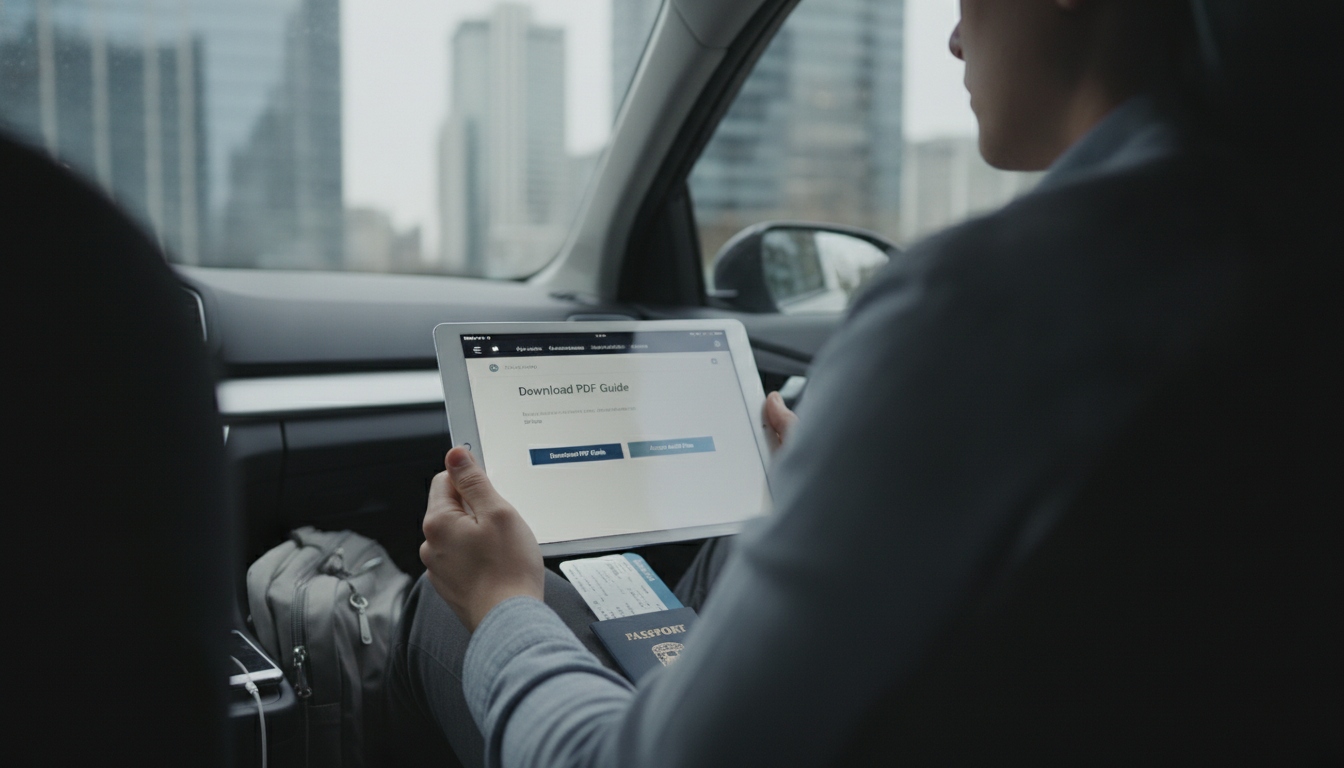
How do I download and access the PDF and audio files after purchase?
After you complete checkout, your PDF and audio files are typically available right away through your order confirmation page and the email receipt sent to the address used at checkout. Start by checking your inbox for a message that includes a “Download” button or a link to your digital items. If you don’t see it within a few minutes, look in Spam, Promotions, or Updates folders.
Step-by-step: Download your files
1) Open your order confirmation email and select the download link for the PDF and/or audio files. 2) If you’re taken to a download page, choose each file format and click “Download” or “Save.” 3) On a phone or tablet, you may be prompted to choose an app (Files, Books, Drive, etc.)—pick the option that lets you save the file so you can access it later without hunting for the email again.
Where to find your downloads on common devices
Windows: Check the “Downloads” folder in File Explorer; your browser may also show recent downloads at the top-right. Mac: Look in Finder > Downloads, or check your browser’s downloads list. iPhone/iPad: Open the Files app and look under “Downloads” (often in iCloud Drive or On My iPhone/iPad). PDFs may also appear in Books if you chose that option. Android: Use the Files app (or My Files) and open “Downloads.”
Troubleshooting quick fixes
If a download link isn’t working, try refreshing the page, switching browsers, or turning off any ad-blocker for the download page. If an audio file won’t play, confirm it fully downloaded and try opening it in a different audio player app. For missing emails, search your inbox for the store name or your order number.
For the full walkthrough and the most up-to-date access steps, visit the main article here.
FAQ
What should I do if I didn’t receive my download email?
Check Spam/Promotions folders and search your inbox for your order number or the store name. If it’s still not there, confirm you entered the correct email at checkout, then contact support with your purchase details so the download link can be resent.












Leave a comment